 SunDr
SunDrDeploy Apps to Samsung Smart TV: The Bash Script That Saves Hours
After 9+ years of deploying OTT apps to Tizen, I wrote a script that turns a 15-step manual process into one command. Open-sourced with interactive menu.

If you've ever deployed a web app to a Samsung Smart TV, you know the pain. Connect via sdb, resolve the device name, package the .wgt file with the right certificate, uninstall the old version, install the new one, run it, pray it doesn't crash. Every. Single. Time. After 9+ years of doing this across dozens of OTT projects — including platforms serving 80M+ viewers — I finally snapped and wrote a script that automates the entire thing.
I'm sharing it here because I wish someone had shared something like this with me years ago. If you want to understand why Smart TV development is painful in the first place — ancient browsers, memory limits, spatial navigation nightmares — I wrote about that in Smart TV App Development: Challenges Nobody Warns You About.
What You Need Before Starting
Before the script can do its magic, you need three things set up on your machine and your TV.
1. Install Tizen Studio. Download it from the official Tizen Studio page. You need the CLI tools — specifically sdb and the tizen command-line utility. The script expects them at ~/tizen-studio/tools/. After the base installation, open Package Manager, go to the Extension SDK tab, and install TV Extensions and Samsung Certificate Extension. The full process is described in the Samsung TV SDK installation guide.
2. Create a Samsung certificate. This is the part that trips most people up. You need a signing certificate to package and install apps on a physical TV. Follow the Samsung certificate guide: open Certificate Manager in Tizen Studio, create a Samsung certificate profile (not a Tizen one), authenticate with your Samsung Developer account, and register your TV's DUID as the target device. Keep the certificate backed up — future updates must use the same author certificate or the TV treats them as a completely new app.
3. Enable Developer Mode on the TV. On the TV itself, go to the Apps panel, open App Settings, and enter the code 12345. This opens the Developer Mode popup. Toggle it on, enter your computer's IP address, and reboot the TV. After restart you'll see "Develop Mode" at the top of the Apps panel. The full walkthrough is in the Samsung device setup guide.
Also required: Java 8. Tizen CLI tools still depend on Java 8, not newer versions. On macOS, install it with brew install --cask temurin8. The script automatically detects and switches to Java 8 for the session, so it won't mess with your system Java.
What the Script Does
The script gives you an interactive menu powered by gum (a terminal UI toolkit that it auto-installs if missing). You get 8 options:
- Run All Steps — connect, resolve device, package, uninstall old version, install, and run. One selection, done.
- Connect to TV — establishes sdb connection to your TV's IP.
- Resolve device name — reads the device identifier from sdb, needed for all Tizen CLI commands.
- Package app — signs your build directory as a .wgt file with your certificate. Handles filename sanitization automatically.
- Uninstall app — removes the existing version from the TV (gracefully ignores if not installed).
- Install app — pushes the .wgt to the TV.
- Debug app — launches a debug session and forwards the debug port so you can attach Chrome DevTools.
- Run app — launches the app in non-debug mode.
You can also pass a pre-built .wgt file directly, and the script skips the packaging step entirely.
Config Persistence: Set Once, Deploy Forever
On first run, the script asks you four things: TV IP address, certificate name, package ID, and the path to your build directory (or .wgt file). The package ID comes from your project's config.xml — it's the combination of the tizen:application package attribute, in the format AbCdEf1234.MyApp. The script saves all of this to ~/.tizen_deploy_config, so every subsequent run just works — no re-entering values.
Working on a different project or switched TVs? Run the script with --clear-config to reset everything:
./tizen_deploy.sh --clear-configThis wipes the saved config and prompts you fresh.
The Full Script
Here's the complete source. Save it as tizen_deploy.sh, make it executable with chmod +x tizen_deploy.sh, and run it.
#!/bin/bash

# PLATFORM DETECTION
OS_TYPE="$(uname -s)"
IS_MAC=false
IS_LINUX=false
IS_WIN=false

case "$OS_TYPE" in
  Darwin*) IS_MAC=true ;;
  Linux*) IS_LINUX=true ;;
  MINGW*|MSYS*|CYGWIN*) IS_WIN=true ;;
esac

# CONFIG PATH
CONFIG_PATH="$HOME/.tizen_deploy_config"
$IS_WIN && CONFIG_PATH="$HOME/_tizen_deploy_config"

# --clear-config ARG HANDLING
if [[ "$1" == "--clear-config" ]]; then
  echo "Clearing config at $CONFIG_PATH"
  rm -f "$CONFIG_PATH"
fi

# INSTALL GUM IF NOT FOUND
install_gum() {
  if command -v gum &>/dev/null; then return; fi
  echo "'gum' is not installed. Installing..."

  if $IS_MAC; then
    if ! command -v brew &>/dev/null; then
      echo "Homebrew is required on macOS." >&2
      exit 1
    fi
    brew install charmbracelet/tap/gum
  elif $IS_LINUX; then
    if command -v apt &>/dev/null; then
      sudo apt update && sudo apt install -y gum
    elif command -v dnf &>/dev/null; then
      sudo dnf install -y gum
    elif command -v pacman &>/dev/null; then
      sudo pacman -Sy gum
    else
      echo "Unsupported package manager." >&2
      exit 1
    fi
  elif $IS_WIN; then
    echo "On Windows, install gum manually:"
    echo "  scoop install gum"
    read -p "Press Enter when installed..."
  fi
}

if ! command -v tizen &>/dev/null; then
  echo "Tizen CLI not found. Install Tizen Studio first."
  exit 1
fi

install_gum

# FORCE JAVA 8 FOR TIZEN
if command -v /usr/libexec/java_home &>/dev/null; then
  JAVA_8_HOME=$(/usr/libexec/java_home -v 1.8 2>/dev/null)
  if [[ -z "$JAVA_8_HOME" ]]; then
    echo "Java 8 is required. Install: brew install --cask temurin8"
    exit 1
  fi
  export JAVA_HOME="$JAVA_8_HOME"
  export PATH="$JAVA_HOME/bin:$PATH"
fi

# LOAD / PROMPT CONFIGURATION
prompt_or_load() {
  local var_name=$1
  local prompt_msg=$2
  local current_value=$(grep "^$var_name=" "$CONFIG_PATH" 2>/dev/null | cut -d'=' -f2-)
  if [ -n "$current_value" ]; then
    eval "$var_name="$current_value""
  else
    read -p "$prompt_msg: " user_input
    echo "$var_name="$user_input"" >> "$CONFIG_PATH"
    eval "$var_name="$user_input""
  fi
}

prompt_or_load TV_IP "Enter TV IP address"
prompt_or_load CERTIFICATE_NAME "Enter Certificate/Profile name"
prompt_or_load PACKAGE_ID "Enter PACKAGE_ID (e.g., abc123.MyApp)"
prompt_or_load INPUT_PATH "Enter build dir or .wgt file path"

# Derive behavior based on INPUT_PATH
if [[ "$INPUT_PATH" == *.wgt ]]; then
  BUILD_DIR="$(dirname "$INPUT_PATH")"
  APP_NAME="$(basename "$INPUT_PATH")"
  SKIP_PACKAGE=true
else
  BUILD_DIR="$INPUT_PATH"
  APP_NAME="$(echo "$PACKAGE_ID" | cut -d. -f2).wgt"
  SKIP_PACKAGE=false
fi

SDB="$HOME/tizen-studio/tools/sdb"
TIZEN_CLI="$HOME/tizen-studio/tools/ide/bin/tizen"

TV_PORT="26101"
DEVICE_NAME=""
DEBUG_PORT=""

# STEP FUNCTIONS
connect() {
  echo "Connecting to $TV_IP:$TV_PORT..."
  CONNECT_OUTPUT=$($SDB connect "$TV_IP:$TV_PORT" 2>&1)
  echo "$CONNECT_OUTPUT" | grep -Eq "connected to|is already connected"     && echo "Connected." || { echo "Failed."; echo "$CONNECT_OUTPUT"; exit 1; }
}

resolve_device() {
  DEVICE_NAME=$($SDB devices | grep "$TV_IP:$TV_PORT" | awk '{print $3}')
  [[ -z "$DEVICE_NAME" ]] && { echo "Could not resolve device."; exit 1; }
  echo "Device: $DEVICE_NAME"
}

package_app() {
  $SKIP_PACKAGE && { echo "Skipping packaging (.wgt provided)"; return; }
  PACKAGE_OUTPUT=$($TIZEN_CLI package -s "$CERTIFICATE_NAME" -t wgt -- "$BUILD_DIR" 2>&1)
  if echo "$PACKAGE_OUTPUT" | grep -q "Package File Location"; then
    PKG_FILE=$(echo "$PACKAGE_OUTPUT" | grep "Package File Location" | sed -E 's/.*:s*//' | xargs)
    NEW_BASENAME=$(basename "$PKG_FILE" | tr -d ' ')
    mv "$PKG_FILE" "$(dirname "$PKG_FILE")/$NEW_BASENAME" 2>/dev/null
    APP_NAME="$NEW_BASENAME"
    echo "Packaged: $APP_NAME"
  else
    echo "Packaging failed."; echo "$PACKAGE_OUTPUT"; exit 1
  fi
}

uninstall_app() {
  $TIZEN_CLI uninstall -t "$DEVICE_NAME" -p "$PACKAGE_ID" 2>&1 |     grep -q "uninstall completed" && echo "Uninstalled." || echo "Not installed, skipping."
}

install_app() {
  INSTALL_OUTPUT=$($TIZEN_CLI install --name "$APP_NAME" -t "$DEVICE_NAME" -- "$BUILD_DIR" 2>&1)
  echo "$INSTALL_OUTPUT" | grep -q "successfully installed"     && echo "Installed." || { echo "Install failed."; echo "$INSTALL_OUTPUT"; exit 1; }
}

debug_app() {
  DEBUG_OUTPUT=$($SDB shell 0 debug "$PACKAGE_ID" 2>&1)
  DEBUG_PORT=$(echo "$DEBUG_OUTPUT" | grep -oE "port: [0-9]+" | awk '{print $2}')
  [[ -z "$DEBUG_PORT" ]] && { echo "Debug failed."; echo "$DEBUG_OUTPUT"; exit 1; }
  $SDB forward "tcp:$DEBUG_PORT" "tcp:$DEBUG_PORT" 2>&1
  echo "Debug on port $DEBUG_PORT"
}

run_app() {
  RUN_OUTPUT=$($TIZEN_CLI run -t "$DEVICE_NAME" -p "$PACKAGE_ID" 2>&1)
  echo "$RUN_OUTPUT" | grep -q "successfully launched"     && echo "Launched." || { echo "Launch failed."; echo "$RUN_OUTPUT"; exit 1; }
}

run_all() { connect; resolve_device; package_app; uninstall_app; install_app; run_app; }

# INTERACTIVE MENU
choice=$(gum choose   "Run All Steps (1-5, 7)"   "1. Connect to TV"   "2. Resolve device name"   "3. Package app"   "4. Uninstall app"   "5. Install app"   "6. Debug app + forward port"   "7. Run app (non-debug)"   "8. Disconnect from TV")

case "$choice" in
  "Run All Steps (1-5, 7)") run_all ;;
  "1. Connect to TV") connect ;;
  "2. Resolve device name") resolve_device ;;
  "3. Package app") package_app ;;
  "4. Uninstall app") resolve_device && uninstall_app ;;
  "5. Install app") resolve_device && install_app ;;
  "6. Debug app + forward port") resolve_device && debug_app ;;
  "7. Run app (non-debug)") resolve_device && run_app ;;
  "8. Disconnect from TV") disconnect ;;
  *) echo "Invalid selection." && exit 1 ;;
esac

echo "Done."
How to Debug Your App with Chrome DevTools
One of the most useful features of the script is remote debugging. Here's how to connect Chrome DevTools to your app running on the TV.
Step 1: Close the app on the TV. If the app is already running, close it first. The debug session needs to launch the app itself — it won't attach to an already running instance.
Step 2: Run the debug command. Launch the script and select "Debug app + forward port" from the menu. The script will output a port number — copy it.
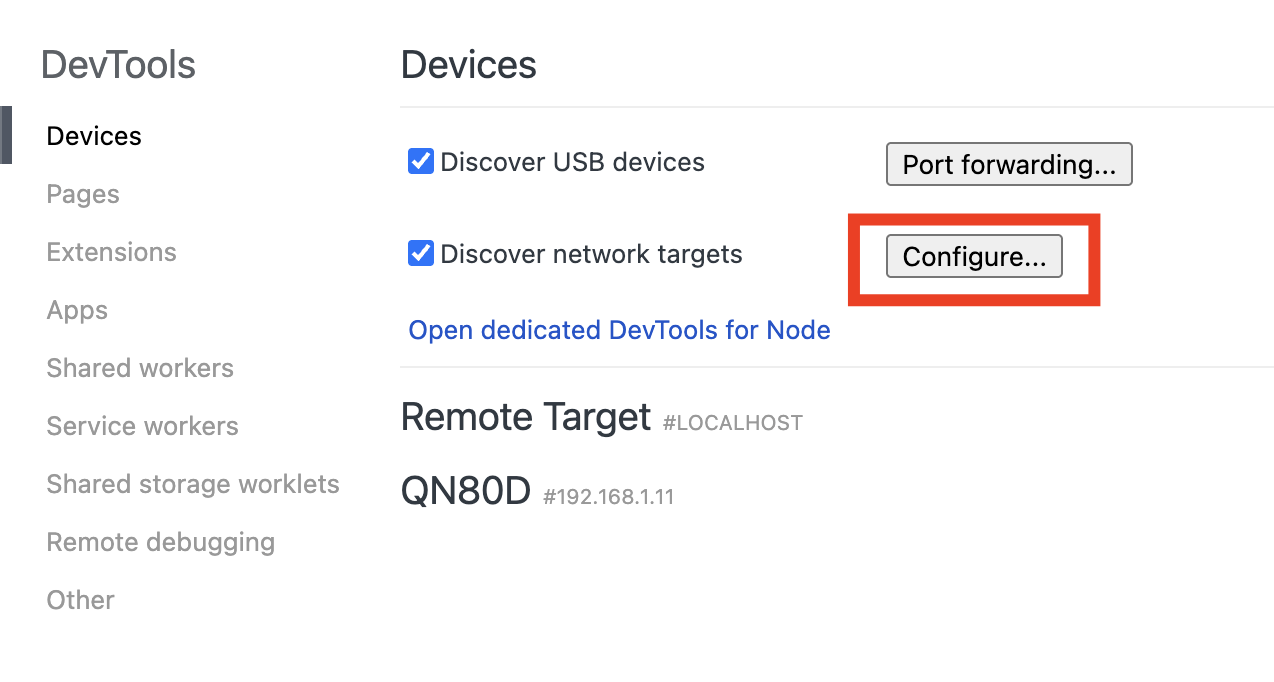
Step 3: Open Chrome DevTools for devices. In Chrome, go to chrome://inspect/#devices. Make sure "Discover network targets" is checked, then click Configure...
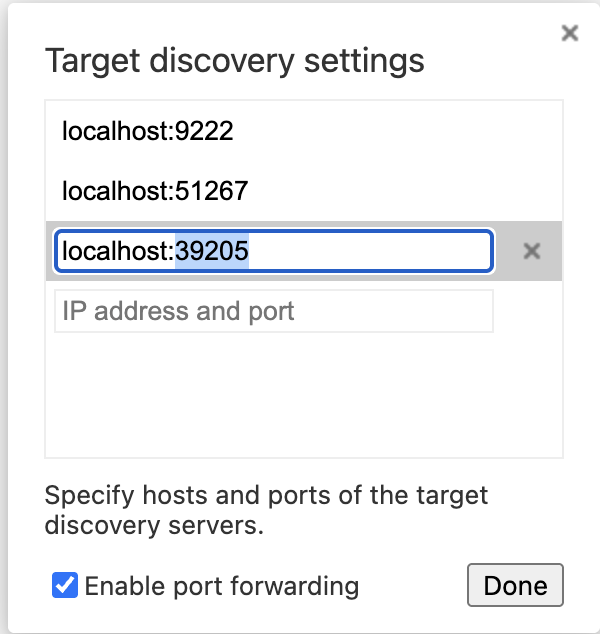
Step 4: Add the debug port. In the Target discovery settings dialog, add localhost:{port} where {port} is the number the script returned. Click Done.
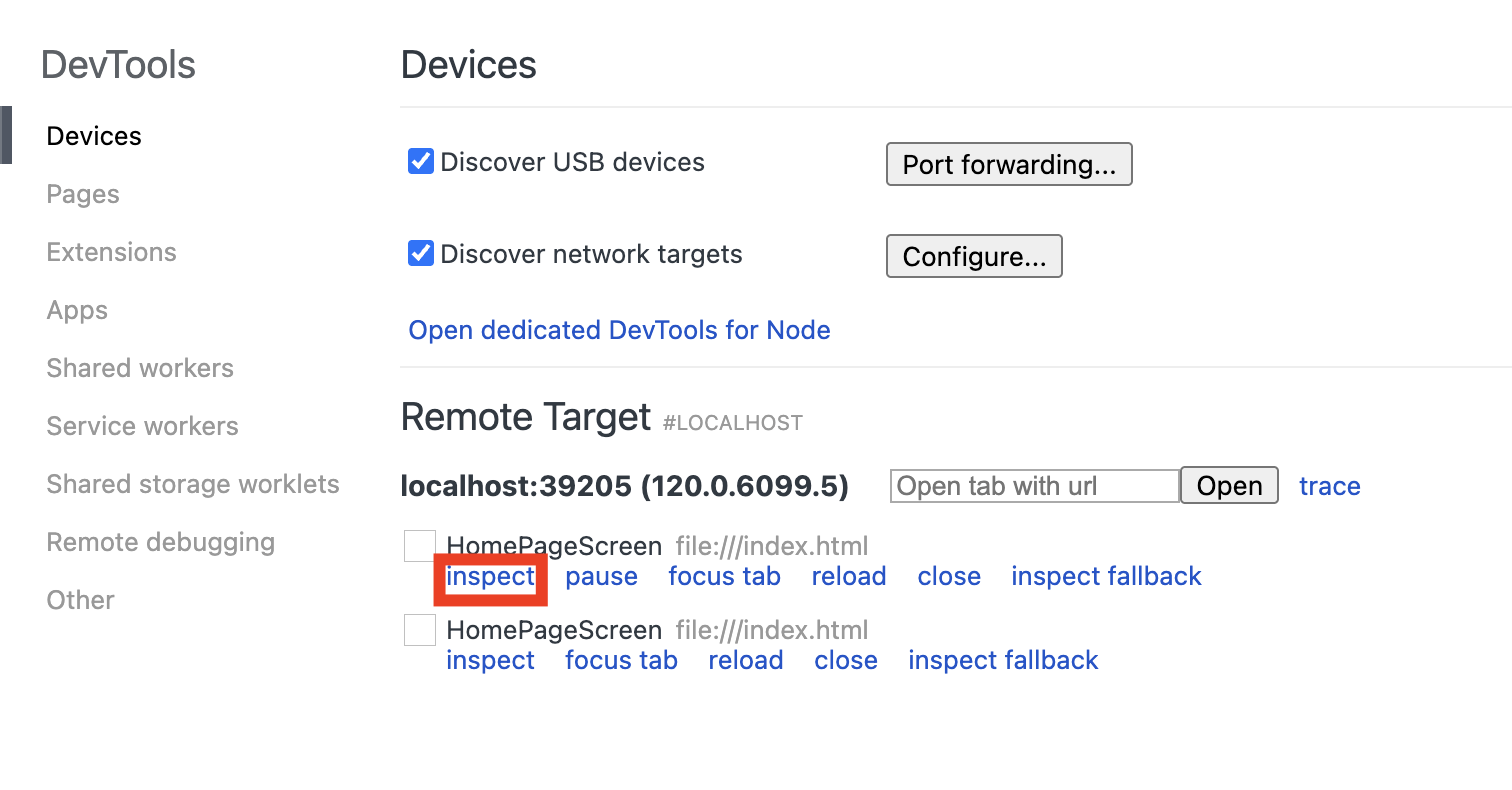
Step 5: Inspect. Your TV app should appear under Remote Target. Click inspect on the first item in the list — a full Chrome DevTools window opens, connected to your app on the TV. You can inspect DOM, debug JavaScript, profile performance, and see network requests just like you would on a regular web page.
Important Notes and Limitations
A few things to keep in mind:
- Tested on macOS. The script has platform detection for Linux and Windows (Git Bash), but I've only battle-tested it on macOS. Linux should work with minor adjustments. Windows via Git Bash/MSYS is experimental — your mileage may vary.
- Java 8 is mandatory. Tizen CLI refuses to work with Java 11+. The script handles this by temporarily switching
JAVA_HOMEfor the session only — your system Java stays untouched. - Certificate issues are the #1 problem. If install fails with a signing error, check three things: the certificate profile name must match exactly, the TV's DUID must be registered in the distributor certificate, and the certificate type matters — you need a Samsung certificate (not Tizen), and the privilege level must be correct (Partner for apps using privileged APIs, Public for basic apps).
- gum is auto-installed. The interactive menu uses gum from Charm. If it's not installed, the script installs it via Homebrew (macOS), apt/dnf/pacman (Linux), or asks you to install it manually (Windows).
Building a Samsung TV App?
This script is a small piece of what goes into shipping production apps on Samsung Smart TVs. The real challenges — spatial navigation, memory management, ancient browser engines, DRM integration — are where 9+ years of OTT development experience makes the difference. I've built streaming platforms serving 80M+ viewers across Tizen, WebOS, Android TV, and more. If you're building an OTT app or any Smart TV product and want someone who's already solved the hard problems, book a free 30-minute call or try the project calculator for a quick estimate.
Have a project in mind?
Book a free 30-minute call to discuss your project, or try the calculator for a quick estimate.

Aleksandr Sakov
Founder of SunDr. 9+ years building OTT streaming platforms, mobile apps, and web applications. The platforms I've built serve 80M+ viewers across 15+ device types.